
Gmail
Connect a Gmail account so your AI agents can read inbox messages, send replies, draft new emails, and organize labels on your behalf — under permissions you set per agent.
What your agents can do with Gmail
Read actions
Available when an agent has Read only or higher.
- Search and list inbox messages with filters.
- Open a specific message or full thread.
- Download an attachment.
- List Gmail labels.
- Read the Gmail profile (address, usage).
- Look up contacts and recent email-people.
Write actions
Available only with Read and write.
- Send a new email.
- Reply to an email thread.
- Create, send, or delete a draft.
- Add or remove labels on a message or thread.
- Create new labels or rename existing ones.
- Move a message to Trash.
- Permanently delete a message.
Connecting Gmail step by step
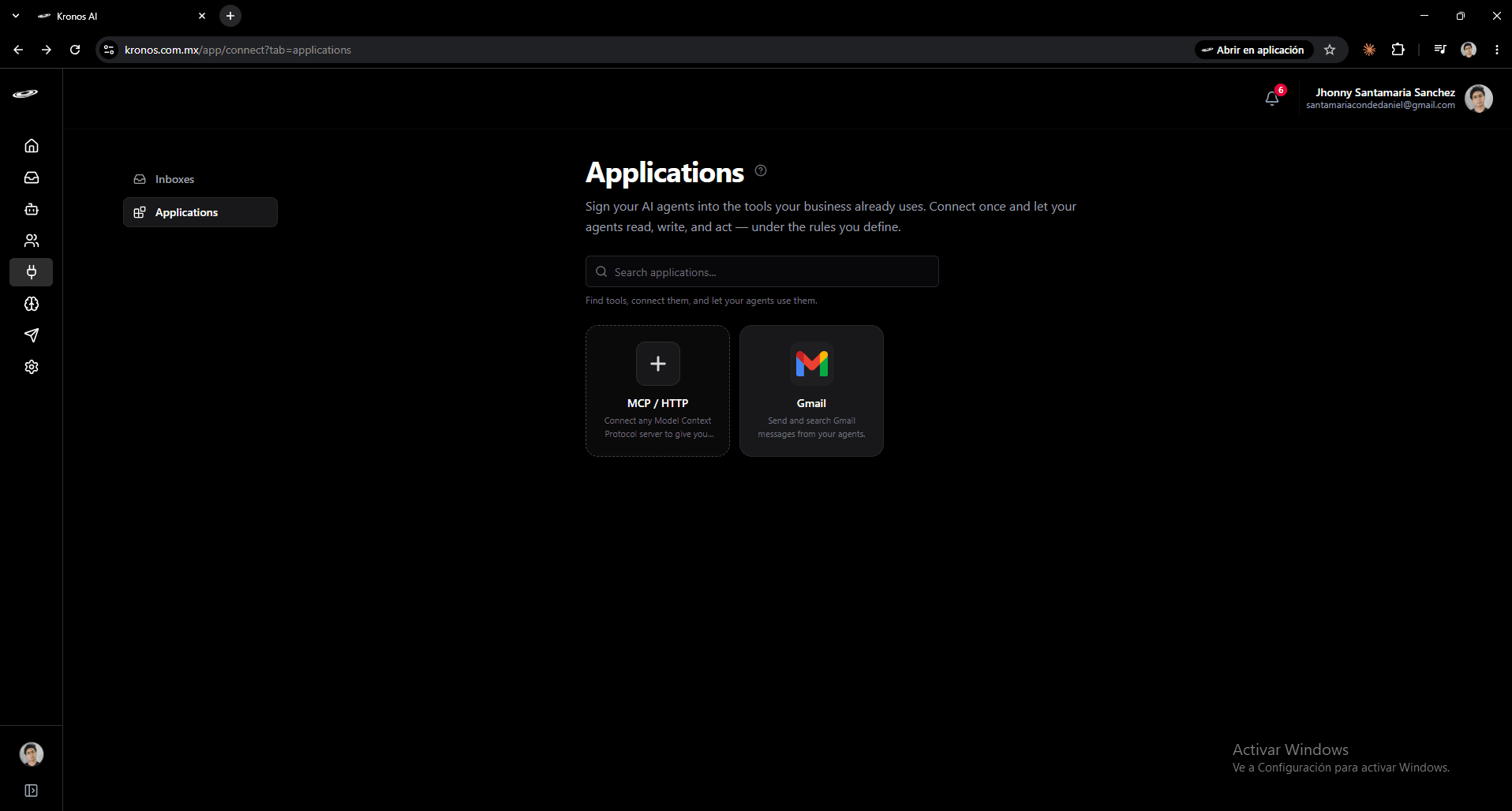
1Open Connect → Applications
From the sidebar, click the plug icon to open the Connect area, then click the Applications tab. You will see the Gmail card alongside the MCP / HTTP card.
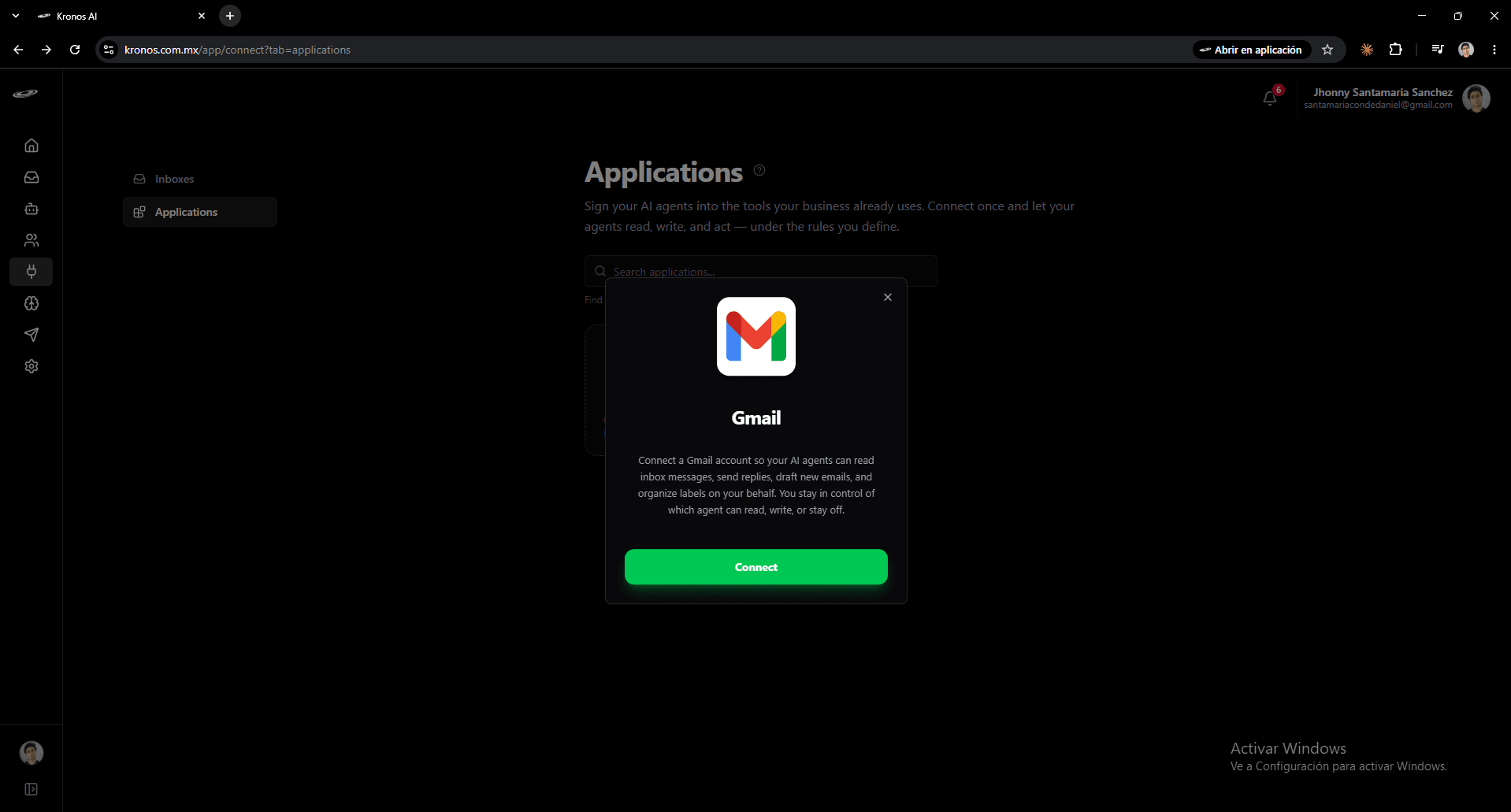
2Open the Gmail card and click Connect
Click the Gmail card to open the detail dialog. Read the description, then click the green Connect button.
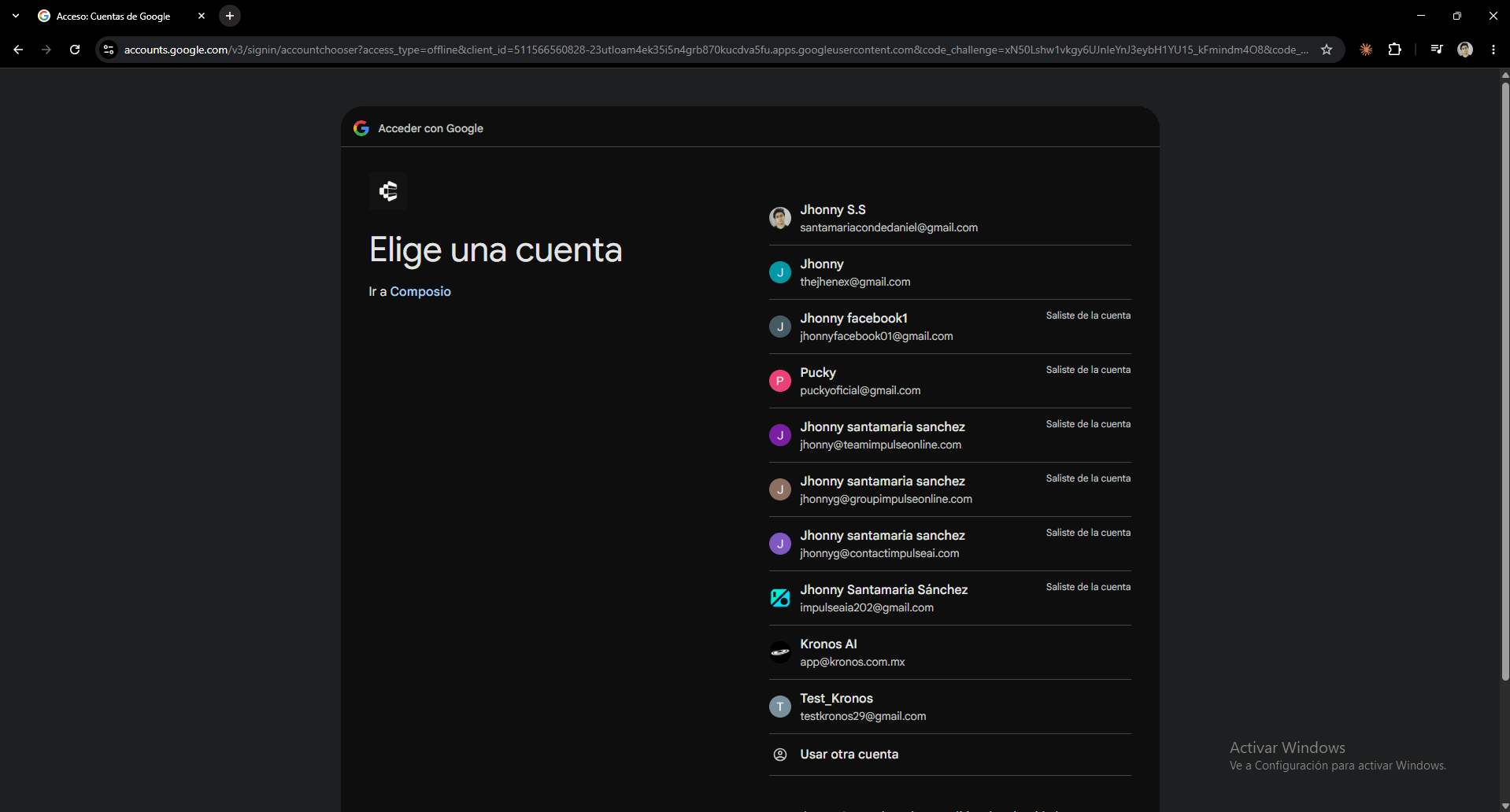
3Pick the Google account
Google asks you which account to use. Pick the Gmail address you want to connect to Kronos AI.
4Confirm the chosen account
Google shows a short confirmation summarizing which identity will be shared. Click Continue.
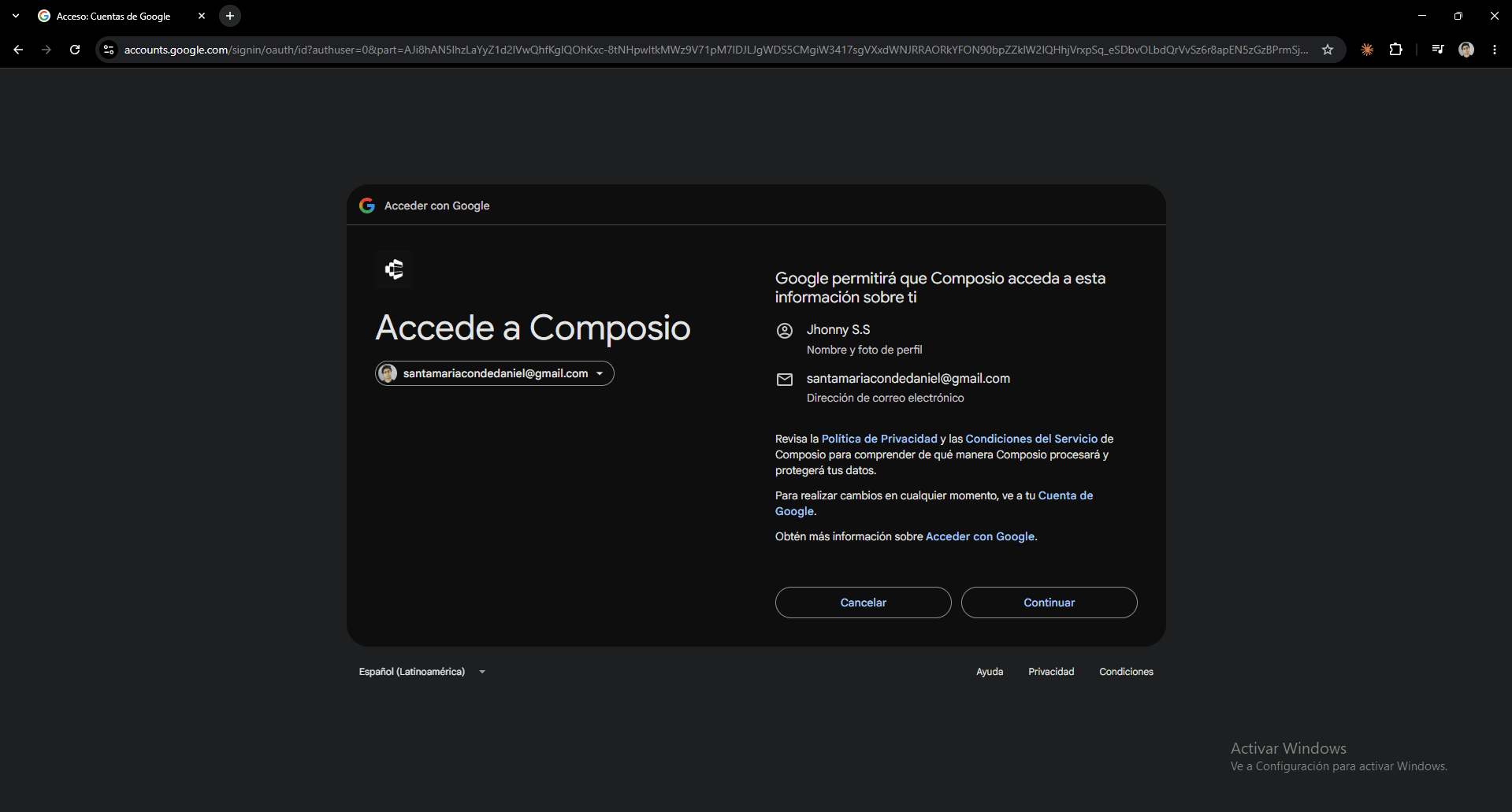
5Review the access Kronos AI will have
Google lists the specific data and actions you are about to authorize — reading, drafting, sending, labeling, and viewing your profile. All boxes are checked by default; leave them as-is unless you have a strong reason to opt out (some actions stop working when a box is unchecked).
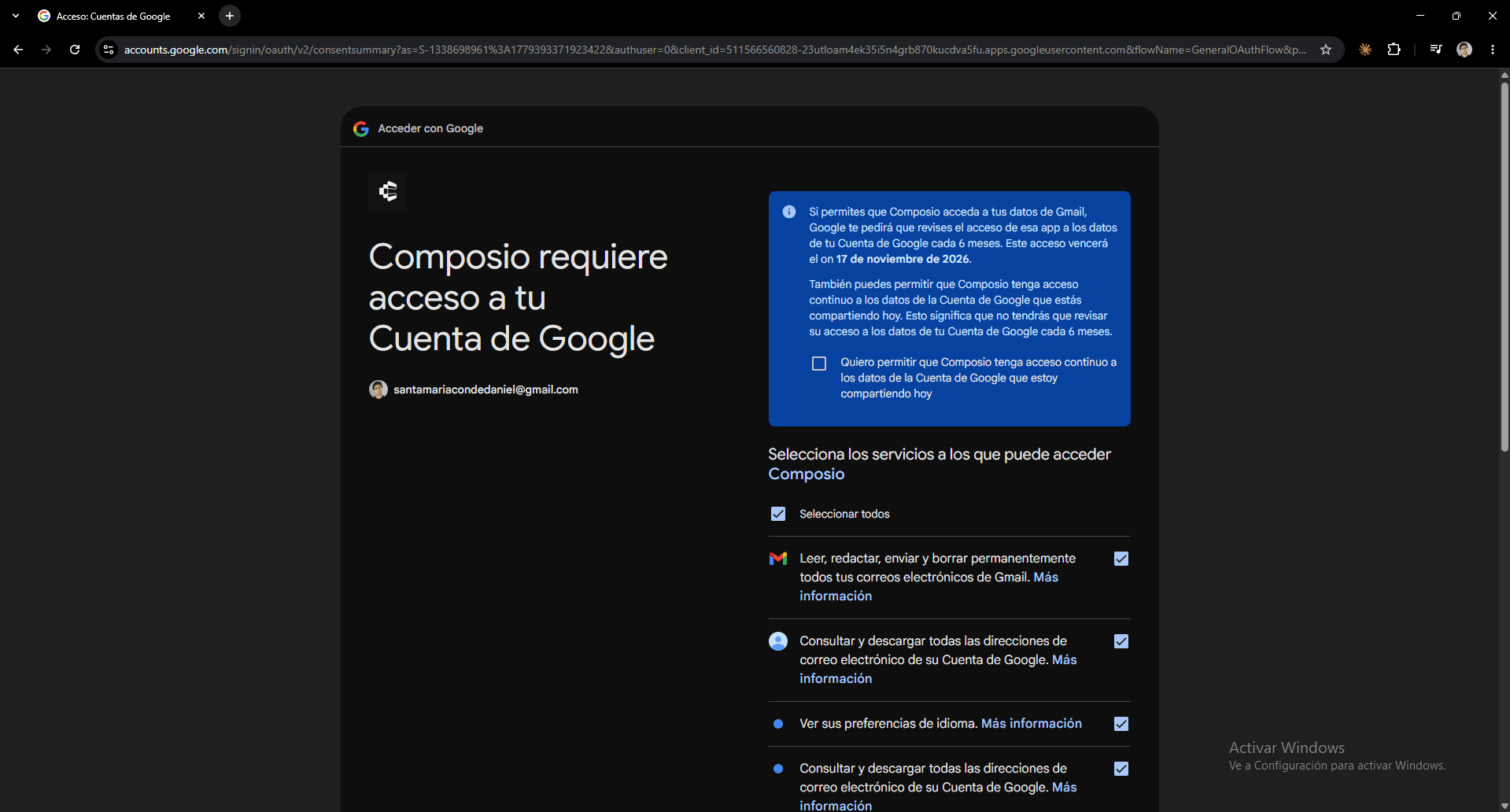
6Confirm and finish
Scroll to the bottom of the access list and click Continue. You will be sent back to Kronos AI at the Gmail management page, where you can rename the inbox and start assigning agents.
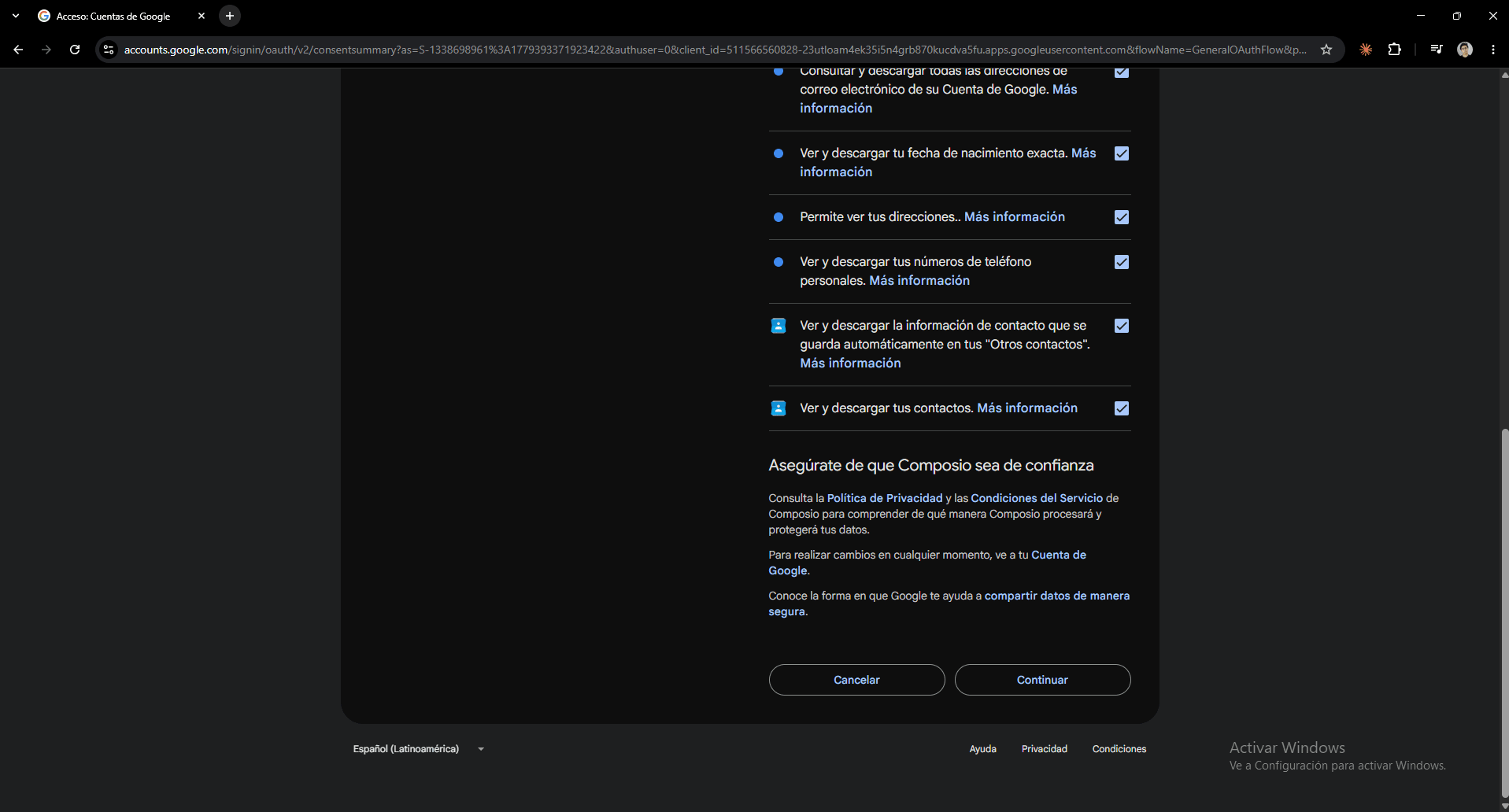
7You land on the Already connected tab
Kronos AI sends you to Connect → Already connected, with the new Gmail entry pre-selected in the left rail. The right pane shows the email address (your connection identifier), an optional Note field to label the connection in your own words, and a Disconnect button. The left rail is where every other connection (HubSpot, Notion, etc., when you connect them) lives — pick one to switch the right pane.
8Grant an agent access from the agent editor
Open any AI Agent and open the Connections tab. Every connection you have signed into appears as a row with the provider logo, its identifier (the email for Gmail), your optional note, and the current access preset. Flip the toggle to grant the agent off ↔ read-only access in one click, or open the gear for full per-action permissions.
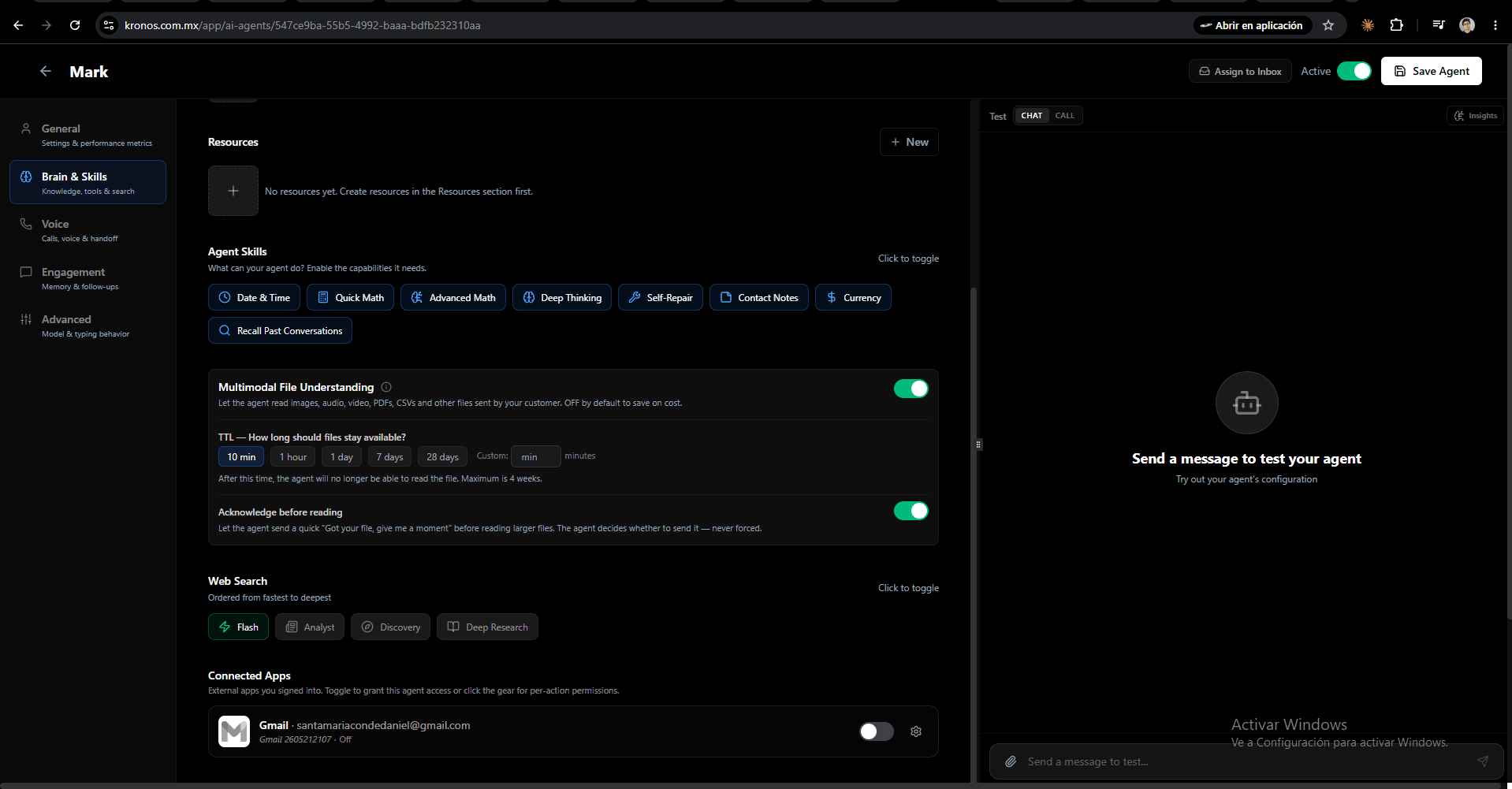
9Set per-action permissions in the modal
The gear icon opens a permissions modal. Pick the access level (Off, Read only, Read and write) and the level's matching action set lights up. Read actions and Write actions are listed side-by-side; toggle individual actions on or off to deviate from the preset (e.g. Read only + Send Email ON gives a reply-only triage agent). Click Save when you are done — changes apply on the next message the agent processes.
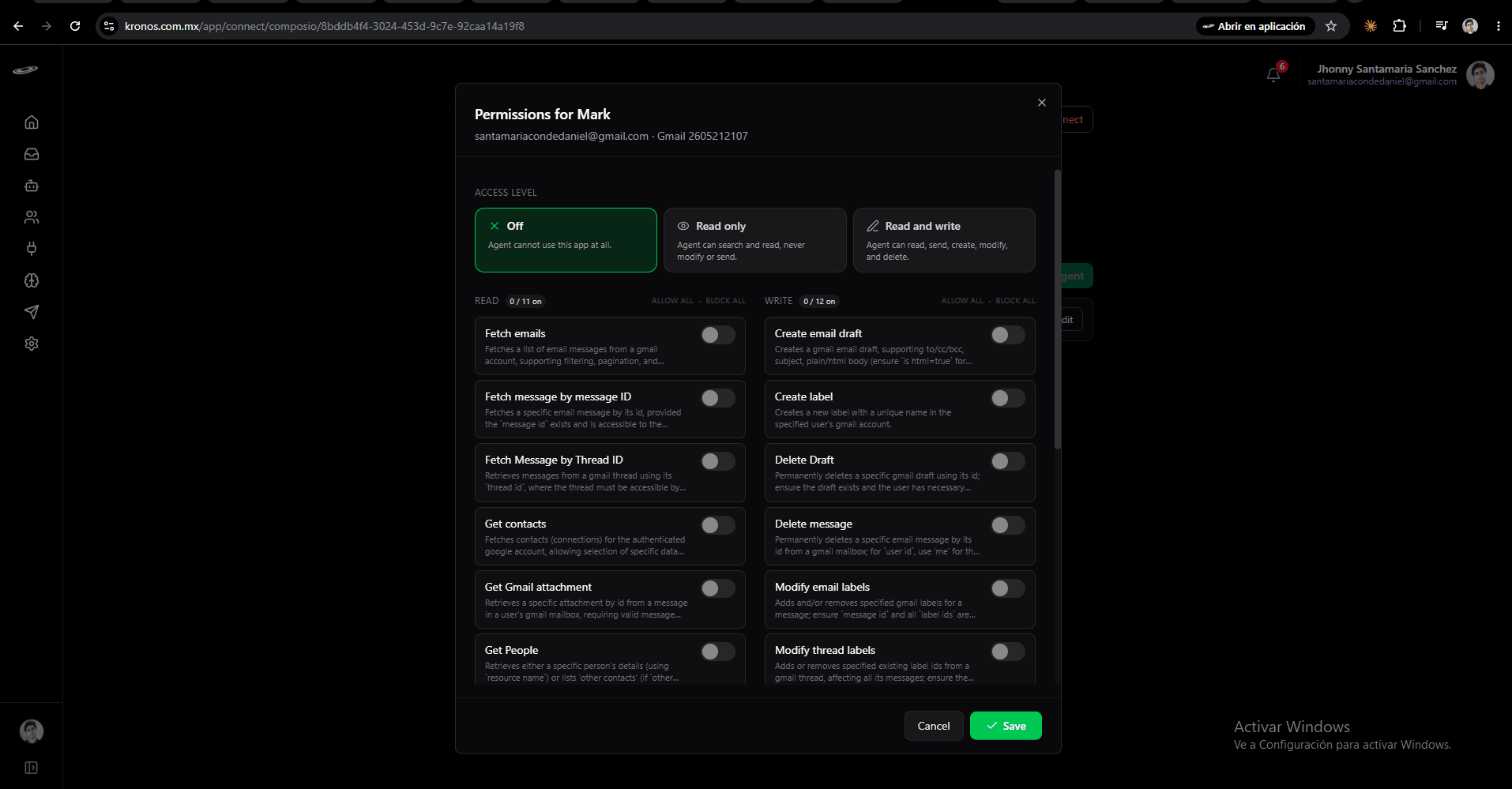
Giving an agent access
The full step-by-step of assigning AI agents and editing their per-action permissions lives at Integrations — the same workflow applies to every app.
On the Gmail management page click + Add AI Agent, pick the agent, then choose a preset:
- Off — the agent cannot touch this Gmail account.
- Read only — the agent can search, list, and read messages, but cannot send, reply, draft, label, or delete anything.
- Read and write — the agent can do all of the above plus send, reply, draft, label, and delete.
Inside the permissions modal (the gear icon) you can also flip individual actions on or off to override the preset — for example, Read only EXCEPT "send email" is allowed for a reply-only triage agent.
Multiple Gmail accounts on the same agent
You can connect more than one Gmail account (e.g. Work + Personal). Each appears as its own inbox with its own editable name. When an agent has access to two or more accounts, it picks the right one from context — or asks the user if the request is ambiguous.
Cut ambiguity by either turning off the agent's access to one of the accounts, or by renaming the inboxes to obviously distinct labels ("Sales Inbox" vs "Personal Gmail").
When something goes wrong
- "Needs reconnect" badge — Google revoked or expired the connection. Open Connect → Gmail, walk through Connect again. Permissions are preserved.
- Agent says "I can't send email" — the agent's preset is Off or Read only without the Send override. Open the permissions modal and adjust.
- Agent says the connected app is temporarily unavailable — Google or the connection had a transient hiccup. Ask the user to retry in a moment.
Privacy
Kronos AI does not store the content of your Gmail messages. Each time an agent uses a Gmail action it fetches just-in-time, uses what it needs to complete the task, and discards the result. The audit log records that the action happened (which agent, which action, when) but not the message bodies.
When you disconnect Gmail or cancel your Kronos AI subscription, the connection and all per-agent permissions are deleted immediately. See the Privacy and Data deletion pages for the legal and processor details.