
Integrations
External apps your AI agents can plug into to take real actions — answer order questions, send emails, update stores, look up records. Connect once, then decide which agents can use it and what they are allowed to do.
Available integrations
Open any of these for the per-app guide. The connect flow and the agent-permission controls work the same way across all of them.
Gmail
Send and search Gmail messages from your agents.
Google Calendar
Check schedules, find open slots, and manage events.

Google Sheets
Read, search, and update spreadsheets and their data.
Google Drive
Find, read, and organize files and folders in Drive.

Google Docs
Create, read, search, and edit documents in Google Docs.
Shopify
Read and act on orders, products, and customers.

Notion
Search, read, and update pages and databases in Notion.

Calendly
Read bookings, event types, and availability; manage events.

Cal.com
Read availability and manage bookings, schedules, and events.

HubSpot
Manage CRM contacts, deals, companies, and tickets.

Slack
Send messages, read channels, and search conversations.

Stripe
Look up payments and manage customers, invoices, and refunds.

Outlook
Read and send email, manage calendar and contacts.

Airtable
Read and update bases, tables, records, and comments.

Mailchimp
Manage audiences and subscribers, tag and segment, send campaigns.

Typeform
Read form responses and manage forms, themes, and workspaces.

ClickUp
Create, read, and update tasks, lists, and folders.

Zendesk
Read and manage support tickets and organizations.

Supabase
Inspect and manage Supabase projects, functions, and settings.

GoHighLevel
CRM, calendars, conversations & pipelines
Custom MCP servers
Bring your own tools. If you can expose them over MCP, your Kronos AI agents can call them — Google Sheets, internal CRMs, anything custom.
Assigning agents and setting permissions
Every integration starts isolated — connecting it does not automatically give any AI agent access. You explicitly assign agents to each connection and pick what they can do. The workflow is the same across every app.
1Open the app's management page
Sidebar → Connect → Already connected. Each app you signed into appears in the list. Click one to open its management page (right pane on desktop, separate page on mobile).
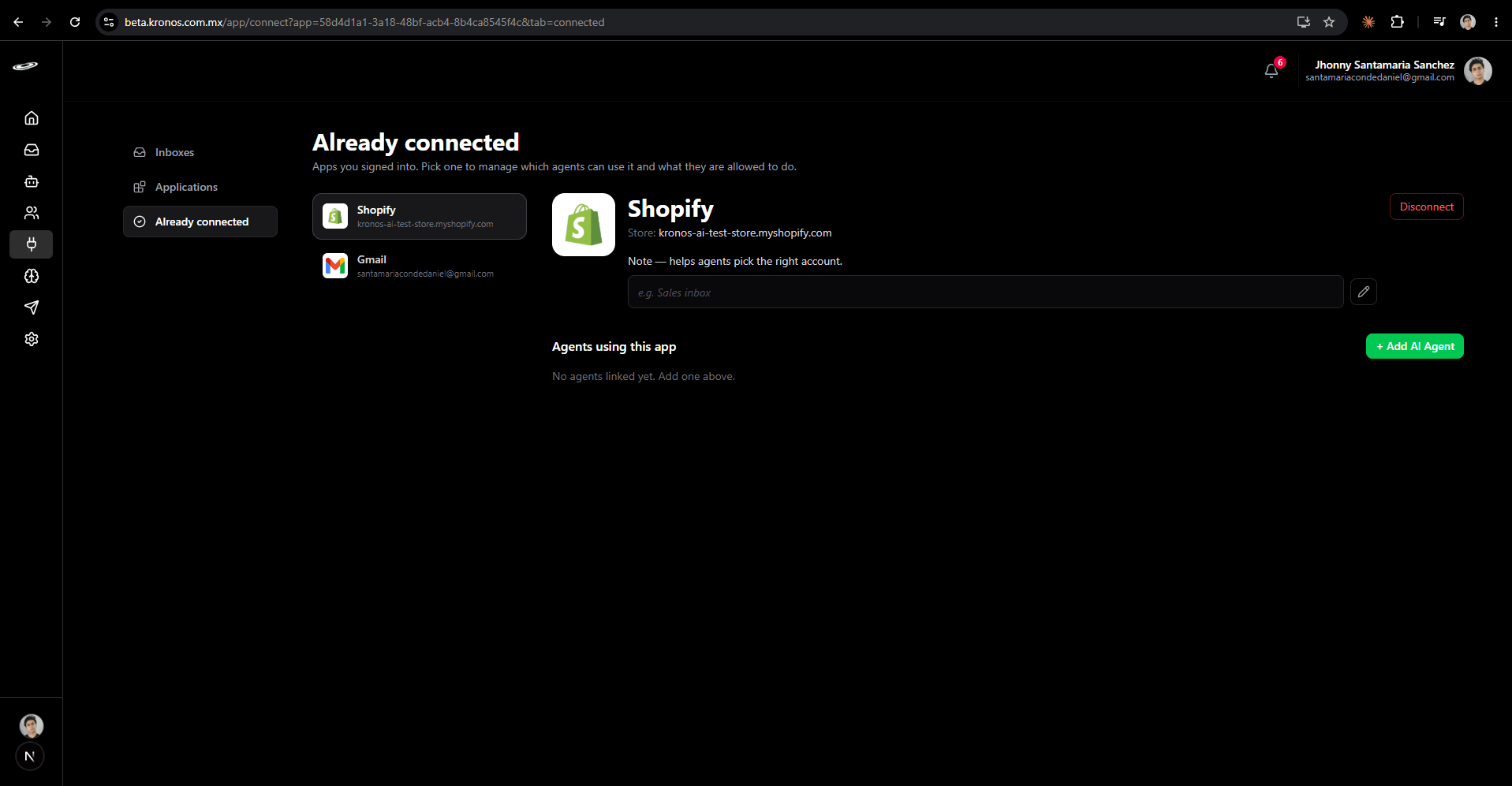
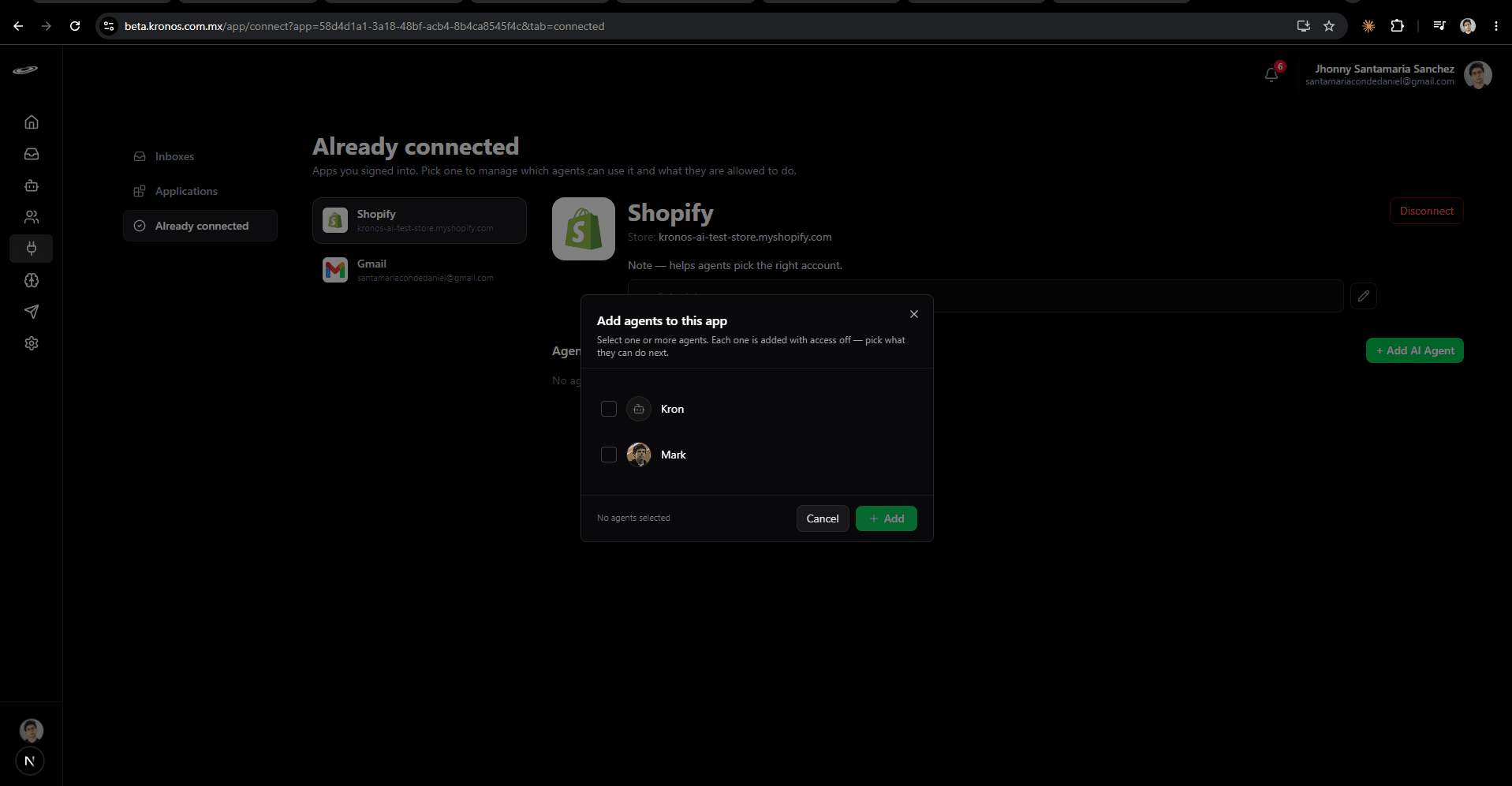
2Click + Add AI Agent and pick the agents
A popup lists every AI agent you own, with each one's profile picture. Tick one or several — you can add multiple at once. Each agent is added with access Off by default, so nothing happens until the next step.
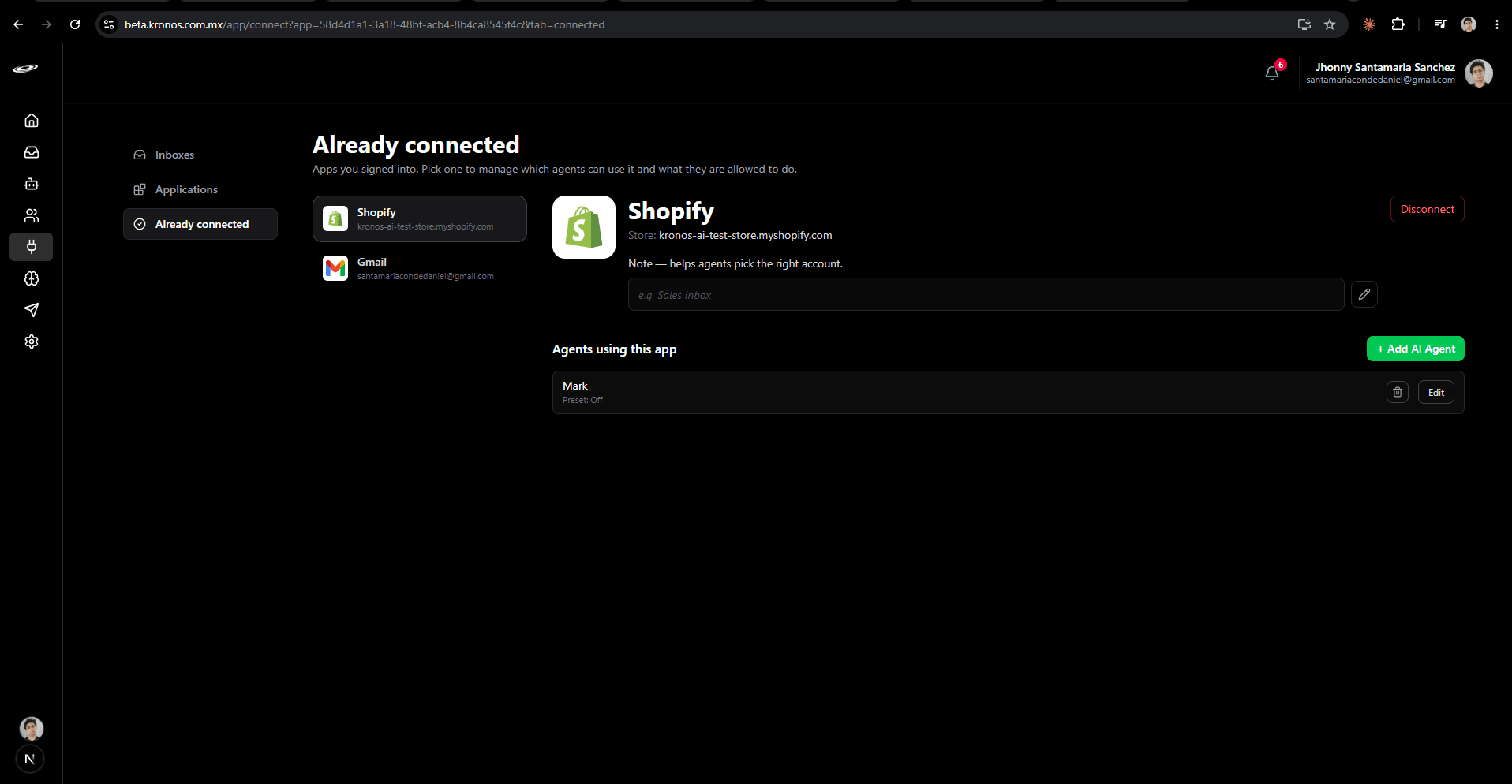
3Manage each agent from the list
Every agent you added appears in Agents using this app with its current preset. Two controls per row: a trash icon removes the agent from this app (the agent itself is untouched), and an Edit button opens the per-action permissions modal.
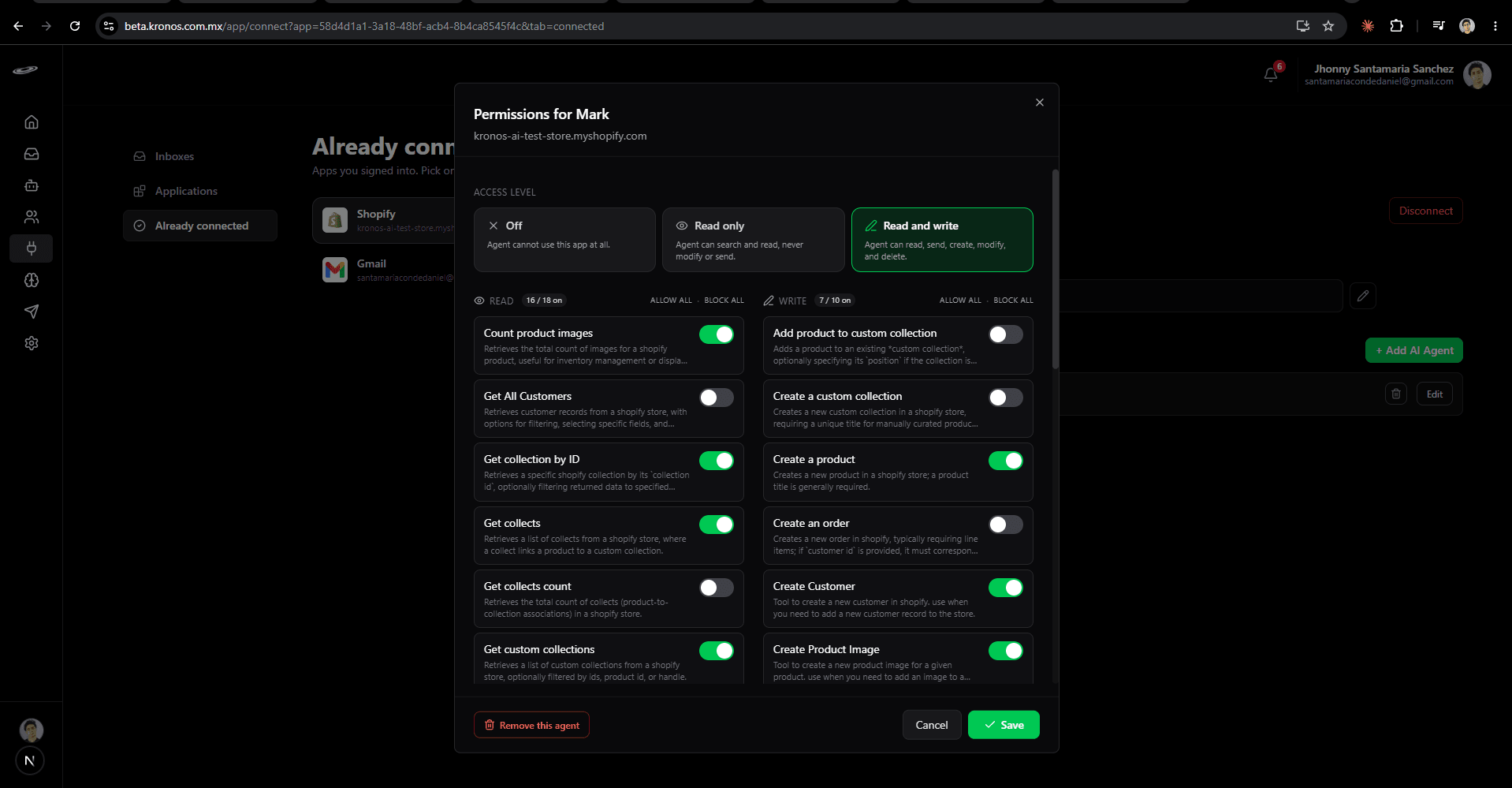
4Set the access level and override individual actions
Edit opens the permissions modal. Pick the access level at the top: Off, Read only (search/read but never modify), or Read and write (full access). The preset sets the default state for each action; flip individual ones on or off to deviate from it — e.g. Read only + Create an order ON gives an order-taking agent that cannot delete anything. Save when done; changes apply on the next message the agent processes.
Access levels at a glance
- Off — the agent stays linked but cannot use the app. Use it to temporarily revoke access without losing the configuration.
- Read only — the agent can search, list, and read; never modify or send. Good for triage agents.
- Read and write — the agent can do everything the app exposes. Use for fully autonomous workers.
Kronos AI checks the access you selected before allowing an action. If a request asks an agent to do something outside that access, the action is not performed.
Multiple accounts of the same app
You can connect more than one account of the same app (e.g. a work Gmail and a personal Gmail, or a retail Shopify store and a wholesale store). Each connection has its own row in Already connected, and you assign agents to each one separately.
When an agent has access to two or more accounts of the same app, it picks the right one from context — or asks the user if the request is ambiguous. The optional Note field on each connection ("Sales inbox", "Wholesale store") gives the agent a human label to anchor on.
Common surprises
- "The agent says it cannot use the app" — its preset is Off, or it is set to Read only and the user is asking for a write action. Open Edit and adjust.
- Removing vs disconnecting — removing an agent from the list revokes only that agent's access. Disconnecting the app at the top wipes every agent's access in one shot.
- Re-adding an agent — when you re-add an agent you previously removed, it starts at Off. The old per-action overrides are not remembered.
Privacy
Kronos AI does NOT store the content of your integrations — orders, products, customers, email bodies. Each time an agent uses an action it fetches just-in-time, uses what it needs, and discards the result. The audit log records that the action happened (which agent, which action, when) but not the underlying data.
When you disconnect an app or cancel your Kronos AI subscription, the connection and every per-agent permission row on it are deleted immediately. See the Privacy and Data deletion pages for the legal and processor details.